
Integrations
Instantly Integration
Add your SendWaves mailboxes to Instantly with one API key.
Paste one Instantly API key into SendWaves and your SendWaves mailboxes are added to Instantly for you, ready to send. No CSV files and no typing in SMTP settings. New mailboxes follow on their own.
Before you start
- A paid Instantly plan. Instantly only allows API access on its paid outbound plans. On a free or trial plan, SendWaves can't add mailboxes for you.
- Owner or admin role in SendWaves. Anyone on your team can see the Integrations window, but only team owners and admins can connect, change or disconnect a tool.
- A few minutes. Getting the key takes about a minute. Mailboxes usually show up in Instantly within 5 minutes of connecting.
Step 1: Get your Instantly API key
Instantly has two kinds of API key. SendWaves needs an API V2 key. Older V1 keys don't work with V2, so if you have one, create a new key.
- Log in to Instantly and open Settings, then Integrations.
- In the left sidebar, open API Keys.
- Click Create API Key.
- Type a name you'll recognize, such as SendWaves. The name is only a label.
- Choose the key's scopes. Give it full access ("all") so SendWaves can add accounts, turn warmup on or off and tag them.
- Click Create and copy the key right away. Instantly shows it only once. If you lose it, create a new one.
Instantly's own guides: Getting started with the Instantly API (creating a key) and API V2 (plans and V1 keys).
Treat the key like a password. Don't paste it into email or chat. You only paste it into SendWaves.
Step 2: Connect Instantly in SendWaves
- Log in to the SendWaves app.
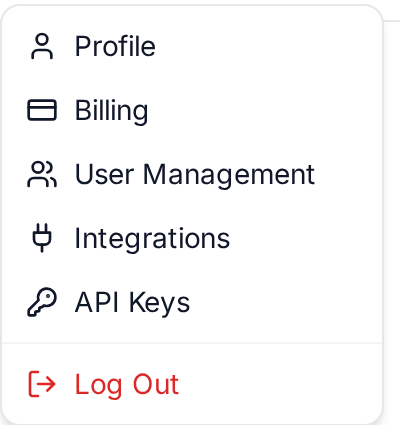
- Click the gear icon at the top right to open your user menu.
- Click Integrations. It sits just above API Keys.
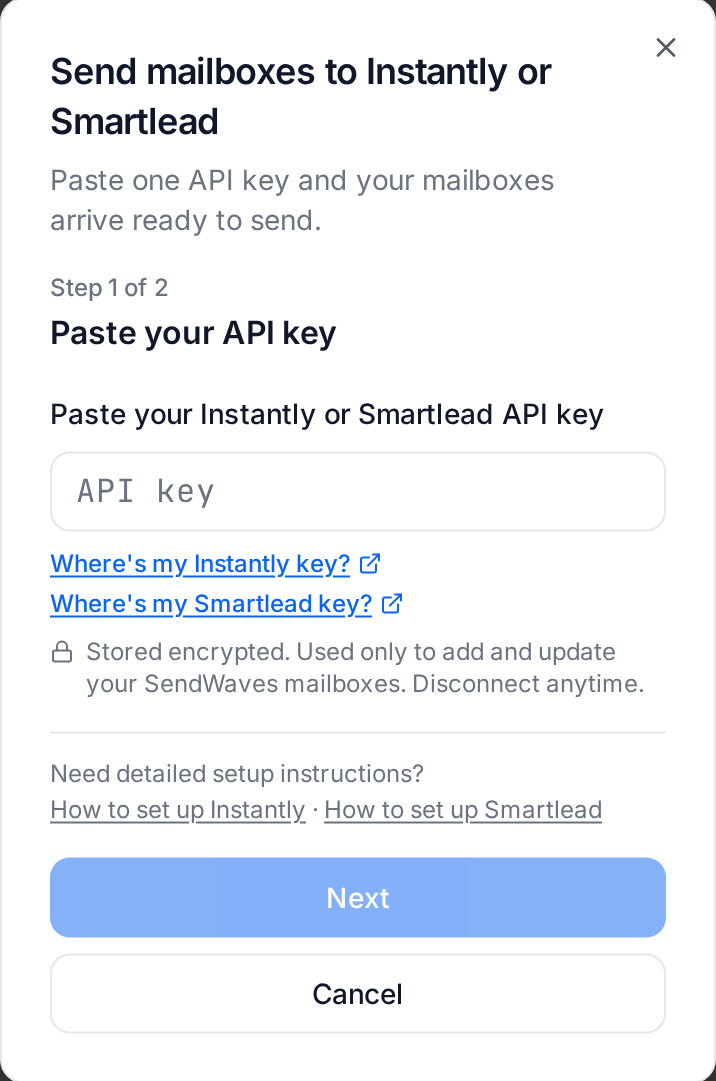
The connect window has two steps.
Step 1 of 2: Paste your API key
- Paste your Instantly key into the box Paste your Instantly or Smartlead API key.
- Click Next at the bottom right. (On a phone, Next is the top button.) Next stays grey until you paste a key.
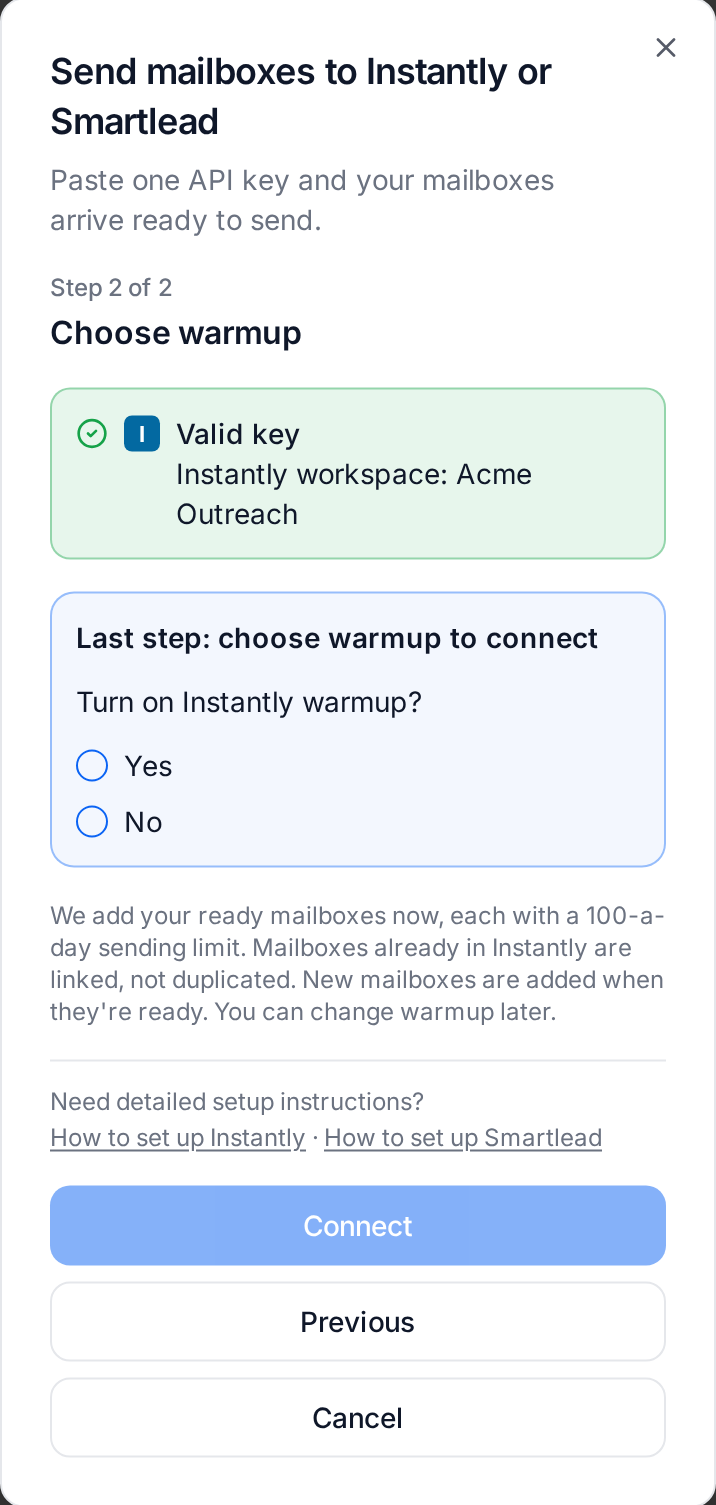
Step 2 of 2: Choose warmup
- SendWaves checks the key and works out which tool it belongs to, so you don't have to pick Instantly from a list. Step 2, Choose warmup, opens with a green line: Valid key and Instantly workspace: followed by your workspace name. Check the name. Your mailboxes go into that workspace.
- In the highlighted box, Last step: choose warmup to connect, answer Turn on Instantly warmup? with Yes or No (see the next section).
- Click Connect at the bottom right. Connect stays grey until you pick Yes or No. To change the key, click Previous to go back to step 1.
Under both steps, Need detailed setup instructions? links to this guide and the Smartlead guide.
Your key is stored encrypted. SendWaves uses it only to add and update your SendWaves mailboxes in Instantly. You can disconnect at any time.
Warmup: Yes or No
Warmup is Instantly's feature that sends and replies to emails between real inboxes, so a new mailbox builds a good sending reputation before you start a campaign. It's your choice. Neither answer is picked for you, and neither is the "right" one.
- Yes
- Your mailboxes are added and SendWaves turns Instantly warmup on for each one.
- No
- Your mailboxes are added with Instantly warmup off. Pick this if you warm up another way or want to decide per mailbox in Instantly.
Your choice applies to every mailbox SendWaves adds to Instantly, including ones that were already in Instantly before you connected. You can change it later (see Change settings later).
What SendWaves sets up in Instantly
Each mailbox arrives in Instantly as a working email account. You don't need to enter anything. Here is every setting and what it means:
- Sender name
- The first and last name people see in their inbox. It comes from the mailbox's sender name in SendWaves. If a mailbox has no sender name, SendWaves uses the part of the address before the @.
- Sending and receiving settings
- The mailbox's SMTP and IMAP login, so Instantly can send from it and read replies. SendWaves fills these in for you.
- Daily limit: 100
- Instantly sends at most 100 emails a day from each mailbox. 100 a day is the SendWaves limit per mailbox, so this keeps you inside it.
- 5 minutes between sends
- Instantly waits at least 5 minutes between two emails from the same mailbox. At that pace, 100 emails take about 8 hours, which spreads sending through the working day and looks natural to inbox providers.
- Warmup
- On or off, as you chose when connecting.
- SendWaves tag
- Every mailbox gets the tag SendWaves in Instantly, so you can filter your account list to see only your SendWaves mailboxes.
You can change any of these in Instantly afterward. SendWaves doesn't undo changes you make there.
Which mailboxes are added, and when
- Only mailboxes that are ready to send. A mailbox is ready when its domain is active and its DKIM record is confirmed. That's the signature that proves your emails really come from your domain. Sending before then would hurt deliverability.
- Others wait, then go by themselves. A mailbox on a new domain shows Adding when DNS is ready. As soon as its DNS is ready, SendWaves adds it. You don't need to do anything.
- New mailboxes are added automatically. When you buy more mailboxes later, they go to Instantly as soon as they're ready.
- Mailboxes already in Instantly are linked, not duplicated. If you had added a SendWaves mailbox to Instantly yourself, SendWaves finds it and links it. It sets the 100-a-day limit and the 5-minute gap, applies your warmup choice and adds the SendWaves tag. It never creates a second copy.
- How fast. SendWaves works through mailboxes every few minutes. Most arrive within 5 minutes.
Check each mailbox's status
Your mailbox table in SendWaves shows where each mailbox stands in Instantly, right under its address.
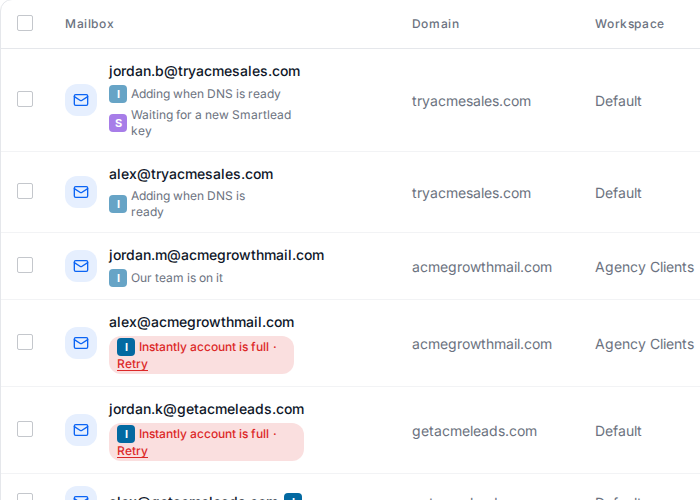
- Instantly mark (a small "I")
- The mailbox is in Instantly. Tap or hover it to see "In Instantly".
- Instantly mark with a small clock
- The mailbox is being added right now. This usually takes a few minutes.
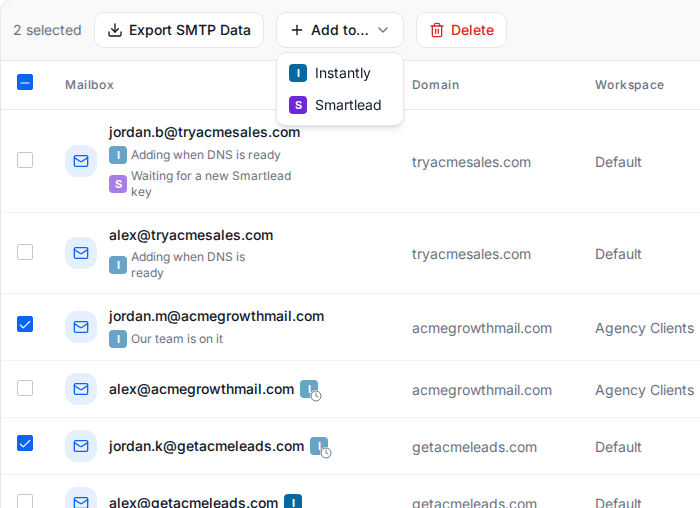
- Adding when DNS is ready
- The domain or its DKIM record isn't ready yet. The mailbox goes to Instantly by itself once it is.
- Waiting for a new Instantly key
- Instantly stopped accepting your key. Paste a new key (see Messages and how to fix them). Waiting mailboxes are then added.
- Our team is on it
- Instantly had a temporary problem with this mailbox. SendWaves retried several times on its own and has now passed it to our team. You don't need to do anything.
- Red chip with Retry
- Something only you can fix in Instantly, such as an account that is full. Click the chip to read what to do, fix it in Instantly, then click Retry.
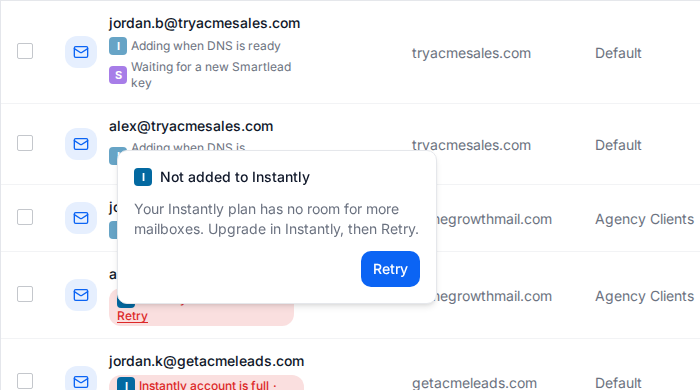
Team members who aren't owners or admins see Details instead of Retry, with a note to ask an owner or admin.
Change settings later
Open the user menu and click Integrations again. The Sending tools window shows:
- your Instantly workspace, the last four characters of your key and the date you connected;
- counts: how many mailboxes are in Instantly, how many are on the way, and how many need you;
- the Warmup switch, and a Disconnect link.
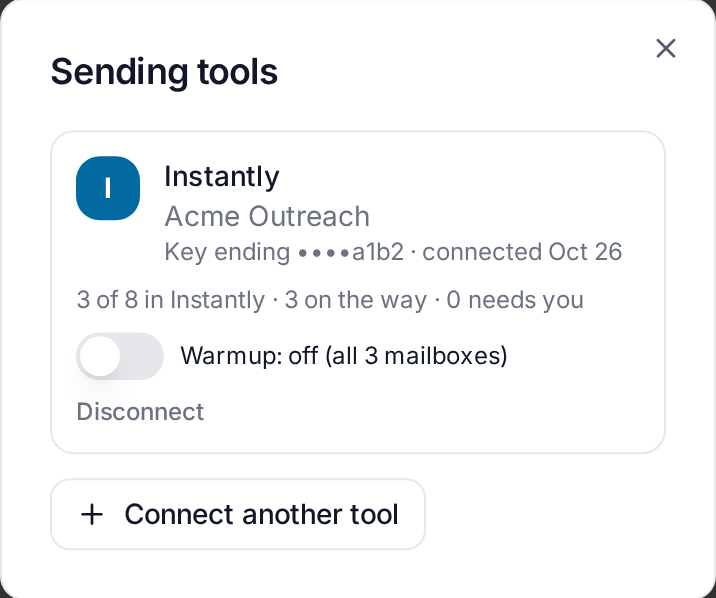
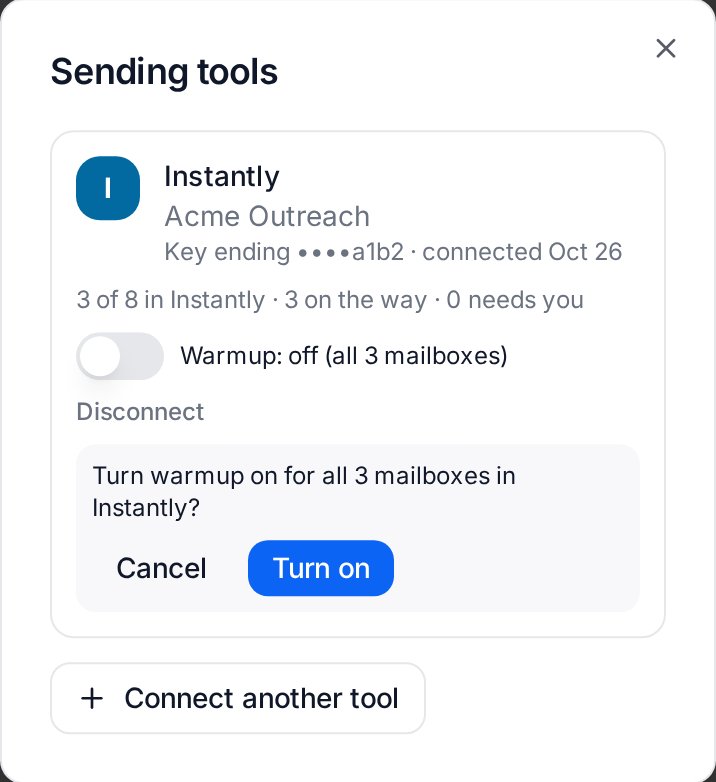
To turn warmup on or off: flip the Warmup switch and confirm. The change applies to every SendWaves mailbox already in Instantly, and to new ones. If Instantly doesn't accept the change right away, SendWaves tells you and keeps retrying on its own (up to 5 tries, waiting longer each time). If it still can't, our team is alerted and follows up. New mailboxes use the new setting either way.
To use a different key for the same workspace: if Instantly stops accepting your key, a box appears here asking for a new one. Paste it and click Save key. Your warmup choice and history are kept.
To move to a different Instantly workspace: disconnect first, then connect with a key from the other workspace. You can connect one Instantly workspace at a time.
Deleting mailboxes and disconnecting
- You delete a mailbox in SendWaves
- SendWaves removes it from Instantly too, within a few minutes. The same happens when you delete a whole domain. This stops Instantly from trying to send from an address that no longer works.
- You disconnect Instantly
- SendWaves deletes your key and makes no more changes in Instantly. Mailboxes already in Instantly stay there with their current settings, so running campaigns aren't cut off. You can also revoke the key in Instantly. If you connect again later, mailboxes are linked, not duplicated.
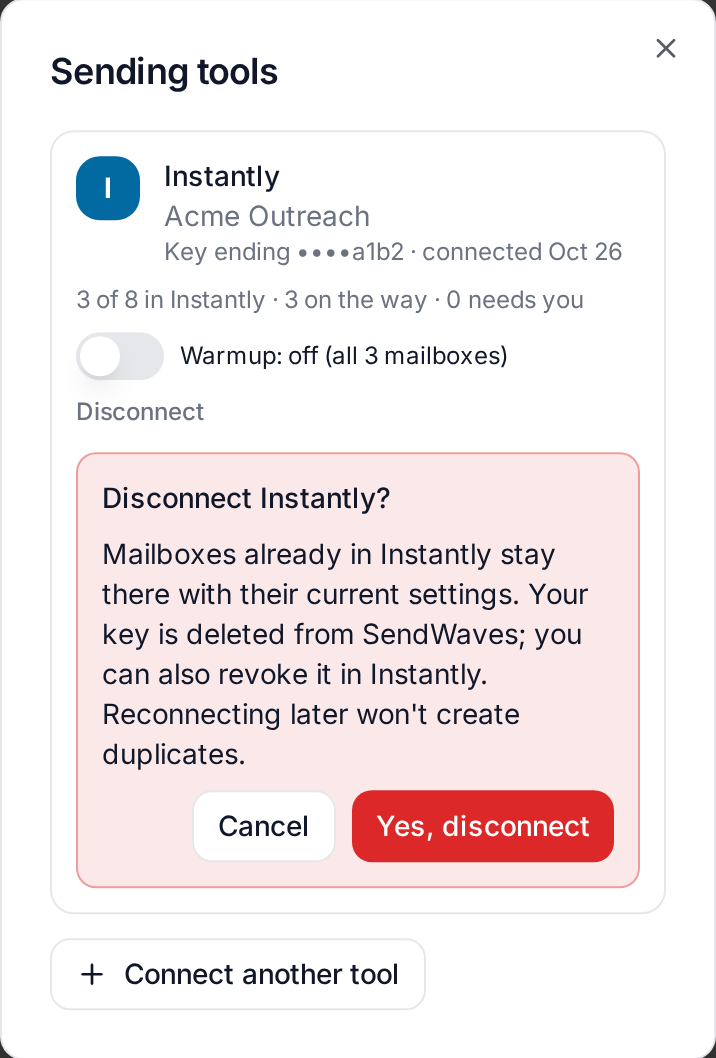
Note that after you disconnect, deleting a mailbox in SendWaves no longer removes it from Instantly. Remove it there yourself.
Messages and how to fix them
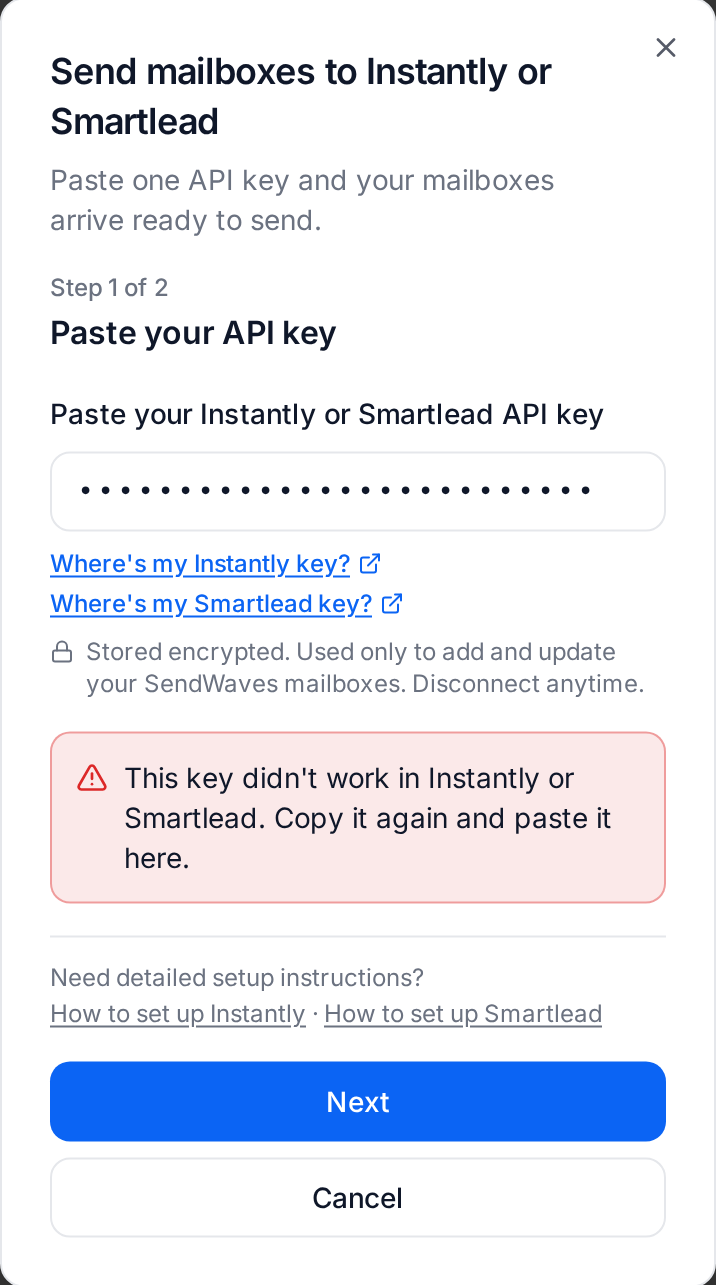
- "This key didn't work in Instantly or Smartlead."
- The key was mistyped, cut short, revoked, or it's an old V1 key. Copy the key again from Instantly, or create a new API V2 key, and paste it.
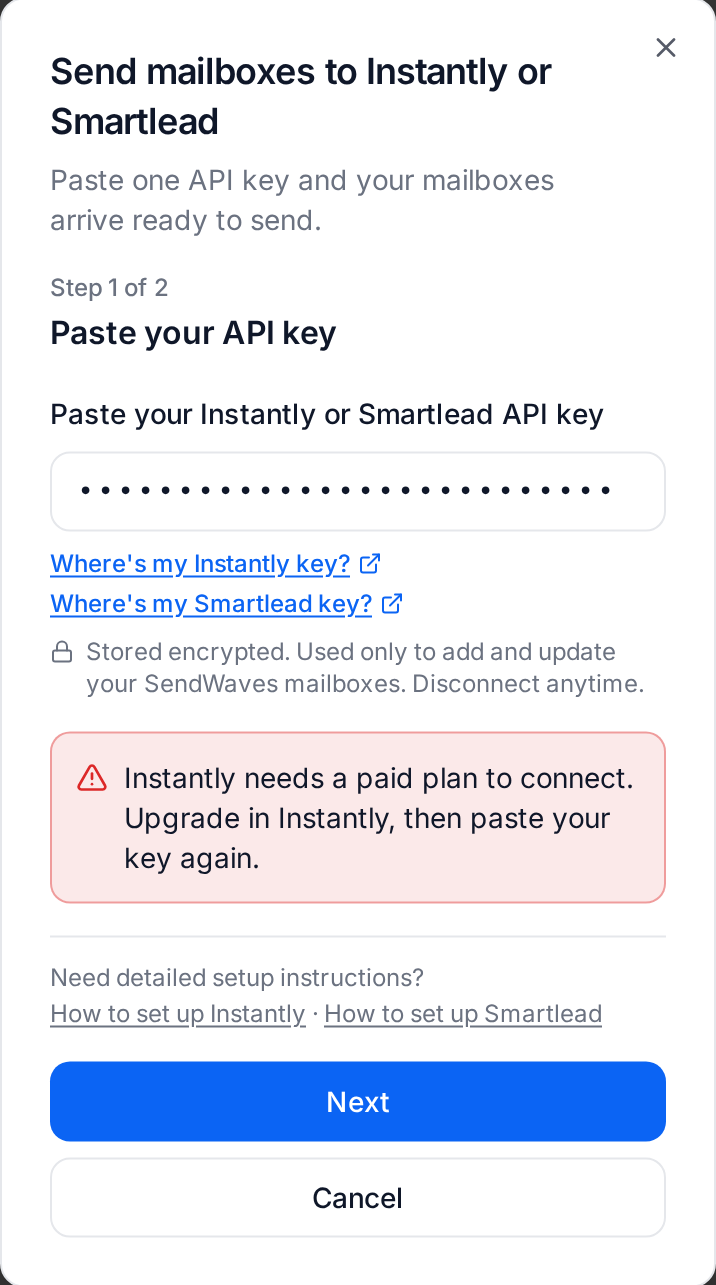
- "Instantly needs a paid plan to connect."
- Instantly only allows API access on its paid outbound plans, and this key belongs to a free or trial workspace. Upgrade your plan in Instantly, then paste the key again. If your plan changes after you connected, mailboxes show a red Instantly needs a paid plan chip instead: upgrade, then click Retry on the chip.
- "Account full"
- Your Instantly plan has no room for more email accounts. Raise the limit in Instantly (upgrade, or remove accounts you don't use), then click Retry on the red chip. Mailboxes wait until then. Nothing is lost.
- "Instantly stopped accepting your key"
- The key was deleted or changed in Instantly. Open Integrations, paste a new key and click Save key. Mailboxes that were waiting are added again.
- "Instantly is already connected."
- Your team already has an Instantly connection. To use a key from another workspace, disconnect the current one first.
- "Couldn't check the key."
- SendWaves couldn't reach Instantly just then. It doesn't mean your key is wrong. Click Try again.
- "Our team is on it"
- Instantly couldn't log in to the mailbox or had a temporary error. SendWaves retries automatically with growing waits. If it still fails, our team is alerted and follows up. No action is needed from you.
Using Instantly and Smartlead together
You can connect both tools. The first tool you connect gets all your ready mailboxes and new ones automatically. When you connect a second tool, nothing is added to it at first. You choose:
- select mailboxes in the table, click Add to… and pick the tool;
- in the Sending tools window, set New mailboxes go to: Instantly, Smartlead or Both. Both means each new mailbox sends from both tools.
If one mailbox sends from both tools, the 100-a-day SendWaves limit is shared between them. Plan your campaigns with that in mind. See Smartlead Integration.
FAQ
Does this cost extra?
No. The integration comes with your SendWaves mailboxes. You need a paid Instantly plan for Instantly's API.
Do I need to give SendWaves my Instantly password?
No. SendWaves only uses the API key you create. It works with two-factor sign-in and you can delete the key in Instantly at any time.
How long until my mailboxes show up in Instantly?
Usually within 5 minutes for mailboxes that are ready. Mailboxes on a brand-new domain wait until its DNS and DKIM are ready, then go automatically.
Some mailboxes say "Adding when DNS is ready". Do I need to do something?
No. Their domain is still being set up. They go to Instantly by themselves when it's done.
I already added some SendWaves mailboxes to Instantly myself. Will I get duplicates?
No. SendWaves finds them and links them. They get the 100-a-day limit, the 5-minute gap, your warmup choice and the SendWaves tag.
Can I change the daily limit or sending gap?
Yes, in Instantly. SendWaves sets 100 a day and 5 minutes between sends when it adds a mailbox, and doesn't change your edits afterward. Going above 100 a day goes over the SendWaves limit per mailbox.
Can I turn warmup on for some mailboxes and off for others?
The switch in SendWaves applies to all your mailboxes in Instantly. To set it per mailbox, change it in Instantly.
What happens to my campaigns if I disconnect?
Nothing. Your mailboxes stay in Instantly with their settings and keep sending. SendWaves just stops adding, updating and removing them.
Can I connect more than one Instantly workspace?
Not yet. You can connect one Instantly workspace and one Smartlead account per SendWaves team.
Who on my team can connect Instantly?
Team owners and admins. Other members can see the connection and each mailbox's status.
Where can I find the SendWaves mailboxes in Instantly?
On Instantly's email accounts page. Filter by the SendWaves tag.
Need help?
If you get stuck or see a message that isn't covered here, use the chat button at the bottom right of the SendWaves app. Our team will help you. Please don't send us your API key. We never need it.